Database Permissions
This page provides an overview of permissions for databases in Splunk AppDynamics.
You can set database permissions for custom roles from the Databases page in the Controller Tenant Administration UI. See Manage Custom Roles for Splunk AppDynamics.
- Navigate to Settings
 > Administration > Roles.
 - Select a non-default role.
- Select the Databases tab.
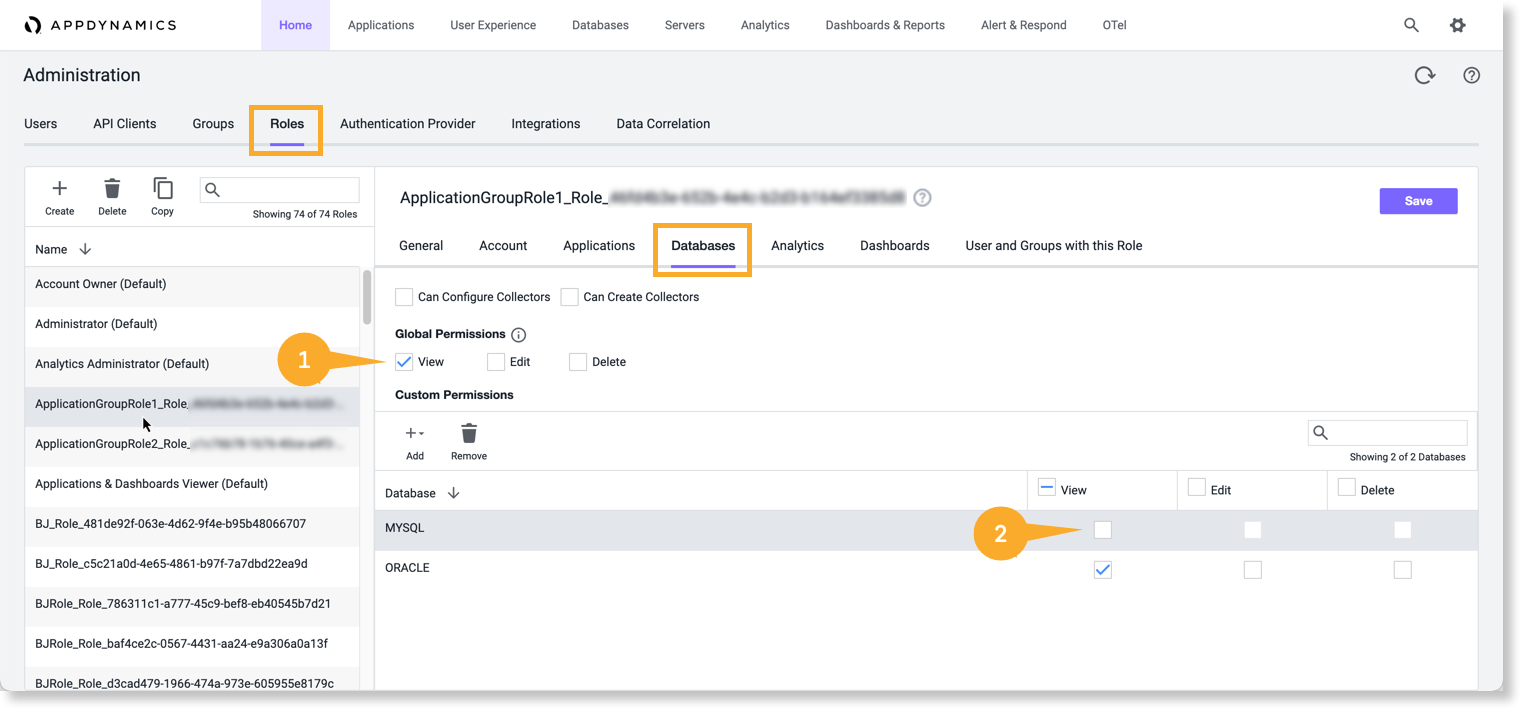
- Mark the View check-box to view metrics associated with database collectors. You can also configure database collector permissions for custom roles.
| Permission | Activities Enabled | More Information |
|---|---|---|
| Can Configure Collectors | Configure baselines, wait state filtering, and custom metrics, as well as activate or deactivate the masking of query literals. | |
| Can Create Collectors | Create database collectors for any database. | Add Database Collectors |
| View | View all existing and new database collectors, and therefore the metrics for the databases associated with those collectors. | Database Dashboard |
| Edit | Edit database collector fields for any database. | Add Database Collectors |
| Delete | Delete database collectors for any database. | Add Database Collectors |
Global Permissions  apply to all databases and override custom permissions. To restrict permissions on certain databases, uncheck global permissions and check the appropriate permission on specific databases.
In this example, the MYSQL database  , although unchecked, has view permission because the global view permission setting is overriding it.