Infrastructure Based Licensing Rule
- Click
 > Create APM License Rule.
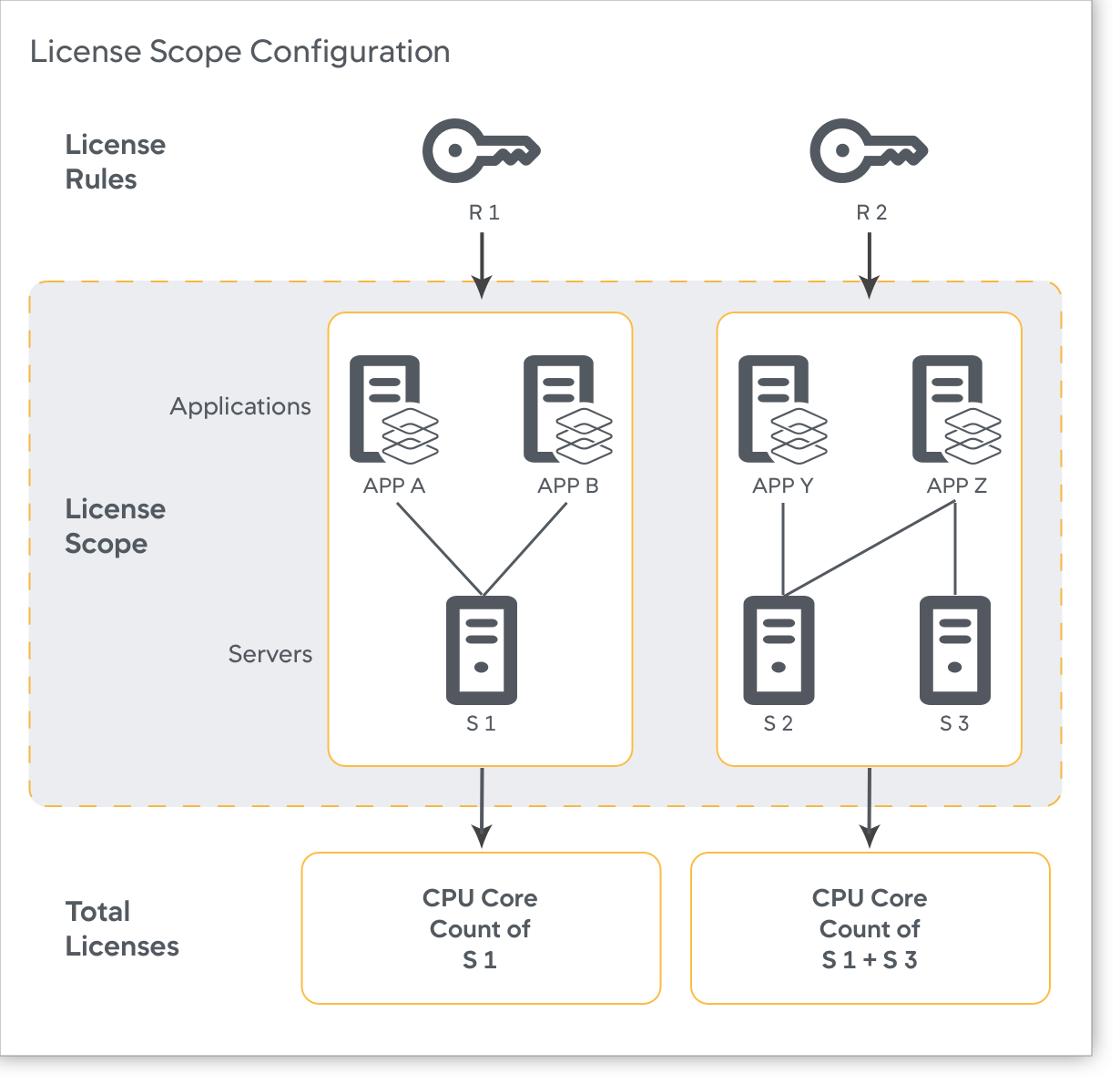
This diagram depicts an example of a scope configuration for IBL.
Machine and Cluster Agent License Prioritization
With Infrastructure-based Licenses (IBL), you can activate license rules to preserve license usage for a Cluster Agent in situations where the system cannot detect its vCPU details. When a Cluster Agent lacks vCPU information, it will temporarily be registered with 0 license units to report the data instead of rejecting them for a few minutes before they start consuming the fallback license units.
Use the PRIORITIZE MACHINE AND CLUSTER AGENT LEASE toggle when you are running a large cluster with several working nodes. If a node using the Cluster Agent fails, then the other app agents on the cluster may use up all the licenses available in the infrastructure-based license pool. When the node recovers and the Cluster Agent tries to get a license lease, there might not be enough available, which will result in overages. If the Machine/Cluster Agent license prioritization setting is activated, one of the other agents will release licenses to allow cluster agents to use them if there are not enough licenses available.
To enable the PRIORITIZE MACHINE AND CLUSTER AGENT LEASE option:
- Go to Settings
> License > License Rules.
- Click the PRIORITIZE MACHINE AND CLUSTER AGENT LEASE toggle.
- Click Done.
Allow Agents to Temporarily Register Without License Units
To conserve license consumption by agents when the system cannot detect its vCPU information because of asynchronous nature of reported vCPU information, AppDynamics enables the delayed fallback mode by default. This mode allows all the agents associated with the license rule to temporarily register with zero license units instead of rejecting them for a few minutes before they start consuming fallback units. This approach prevents the license usage spikes and loss of data. If the vCPU count is still unknown after 10 minutes, the agents start consuming the fallback license units.
On the Create APM License Rule page, the delayed fallback mode is represented by the the ALLOW AGENTS TO TEMPORARILY REGISTER WITH 0 UNITS ON HOSTS LACKING vCPU INFORMATION toggle. This toggle is always ON.
ライセンスルールを作成するためのベストプラクティス
- ライセンスルールを作成するときは、どのアプリケーションがルールに属するかを選択するための一貫した基準に従う必要があります。推奨事項:
- ルールに複数のアプリケーションを含める場合は、ビジネスユニットごとにアプリケーションをグループ化します。
- 個々のアプリケーションの使用状況を表示するには、ルールごとにアプリケーションを 1 つのみ選択してください。
- 作成するルールごとに、新しいアクセスキーが生成され、そのルールに基づくエージェントは、生成されたそのキーで認証されます。この新しいアクセスキーが使用されるようにエージェントを更新し、エージェントを再起動します。
- 各ルールで選択したアプリケーションとサーバーが排他リストであり、複数のルールの一部ではないことを確認します。この構造によって、チャージバックの効果的な管理が実現します。
- ルールを作成しないことを選択した場合、ライセンス割り当ては、すべてのアプリケーションとサーバーが同等に各ライセンスを使用できるデフォルトのルールに従います。
- クラスタ(コンテナ化された環境)でライセンスレポートを簡素化する場合は、すべてのアプリケーションとエージェントがライセンスルールを使用するときに同じライセンスキーを使用することをお勧めします。
- ルールを設定する場合は、最初に Splunk AppDynamics によってプロビジョニングされたユニットよりも多くのユニットを割り当てることができます。オーバープロビジョニング ユニットはユニットの割り当てをバッファし、ルールのアプリケーションとサーバーのリストに対するライセンスユニットの正確な数が不明な場合に役立ちます。ルールの割り当てに制限はありませんが、Splunk AppDynamics は購入したライセンスの数に従ってユニットの使用量を制限します。